Your first diagram
Author, validate, preview, and build a topology from scratch — the loop you will repeat forever.
This walks the whole loop once with a real, working topology. The point is less the example than the rhythm: author → validate → look → build, never skipping the middle two.
Find your icons first
Never invent an icon ID. A wrong one is a validation error, and guessing wastes a round trip:
npm run icons search firewall
npm run icons search "layer 3 switch"
IDs look like <pack>/<category>/<name>. This example uses the affinity pack
because it ships with the repo and needs no fetch.
Write the YAML
Create input/branch.yaml:
marrow: 2
name: Branch Office
description: Single-site branch, edge + LAN
theme: dark
hero: core-sw-01

zones:
  - id: edge
    name: Internet Edge
  - id: lan
    name: Branch LAN

devices:
  - id: edge-rt-01
    name: Edge Router
    icon: affinity/tile/router
    tier: edge
    zone: edge
    role: WAN edge
    mgmt_ip: 192.0.2.1

  - id: fw-01
    name: Perimeter Firewall
    icon: affinity/tile/firewall
    tier: edge
    zone: edge
    mgmt_ip: 192.0.2.2

  - id: core-sw-01
    name: Core Switch
    icon: affinity/tile/switch-multilayer
    tier: core
    zone: lan
    mgmt_ip: 10.0.0.10
    interfaces:
      - name: Gi1/0/1
        description: uplink to firewall
        vlan: 10

  - id: acc-sw-01
    name: Access Switch
    icon: affinity/tile/switch
    tier: access
    zone: lan

  - id: srv-01
    name: File Server
    icon: affinity/tile/server
    tier: endpoint
    zone: lan
    status: degraded
    note: Disk array rebuilding

links:
  - from: edge-rt-01:Gi0/0
    to: fw-01:eth1
    kind: fiber
    speed: 1G
  - from: fw-01:eth2
    to: core-sw-01:Gi1/0/1
    kind: fiber
    speed: 10G
  - from: core-sw-01:Gi1/0/10
    to: acc-sw-01:Gi0/48
    speed: 1G
  - from: acc-sw-01:Gi0/1
    to: srv-01:eno1
    status: degraded
Notice what's being declared: two zones, a tier on every device, a hero, and one degraded link. Nothing about position.
Validate — every time
npm run validate input/branch.yamlZero errors, or it isn't ready. Warnings are advisory (an unlinked device, an empty zone, a port used twice) — usually worth fixing, never blocking.
When something is wrong you get the line, a snippet, and a suggestion:
input/branch.yaml:14:11  error  MRW-E010  Unknown icon

  13 │     name: Edge Router
  14 │     icon: affinity/tile/rooter
     │           ^^^^^^^^^^^^^^^^^^^^
  15 │     tier: edge

  hint: search for a real id — marrow icons search rooter
  did you mean: affinity/tile/router · affinity/symbol/router · cisco/routers/router
Fix what it tells you rather than guessing. The full list is in Diagnostic codes.
Look at it
Two ways. A live server that reloads as you save:
npm run devOr a still image, which is what you want when an agent is driving:
npm run snapshot -- input/branch.yaml -o /tmp/branch.pngThen actually open it. Layout problems, unreadable labels, and a story that
doesn't land are all invisible to validate and obvious in a picture.
Build
npm run build input/branch.yaml
# → output/branch.html
One file. Double-click it, mail it, commit it to a wiki. It works with the network cable unplugged.
What you got
The built file is not a picture — it's an application:
| Interaction | What it does |
|---|---|
| Drag / scroll | Pan and zoom the stage |
| Click a device | Inspector: role, mgmt IP, interfaces, notes, config |
| Hover a device | Dims everything but its neighborhood |
| Click a link | Kind, speed, LAG, status, notes |
| :kbd[⌘]:kbd[K] | Command palette — search, view settings, export |
| :kbd[⌘]:kbd[B] | Sidebar |
| Export | PNG or SVG, from the sidebar menu |
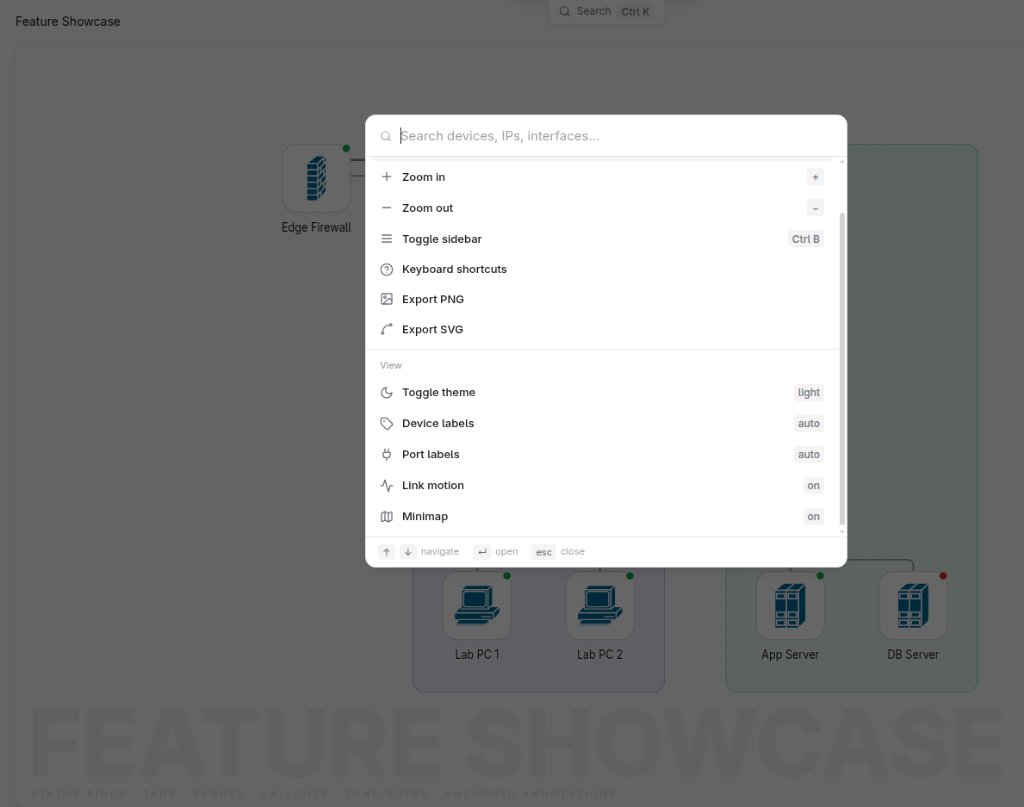
The status: degraded you set on srv-01 shows as an amber LED on the device
and a dashed amber link. Status is declared, not polled — see
Authoring.
Next
- Live preview — the fast edit loop.
- Zones & tiers — the two keys that shape everything.
- How layout is chosen — why your diagram looks the way it does.